Session Chair Forms
Session chairs can view assigned sessions and submit session reporting forms in CONFlux. Follow the steps below to find and complete your forms.
Locating and Completing Your Session Chair Forms
Session chairs can view assigned sessions and submit session reporting forms in CONFlux.
Access Your Session Chair Forms
- Log in to CONFlux.
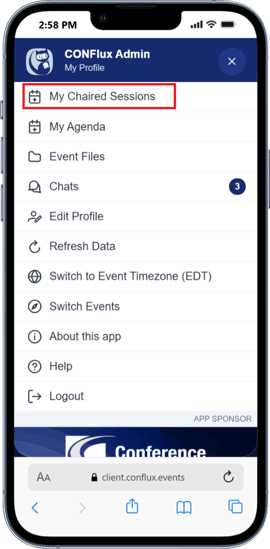
- Click your user avatar in the top menu.
- Select My Chaired Sessions.
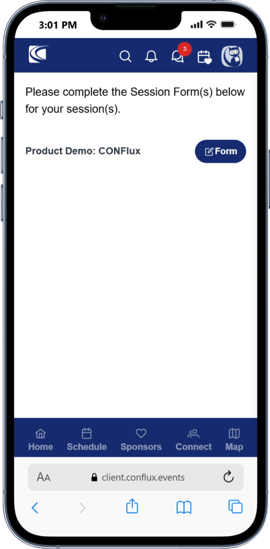
- Review the list of sessions assigned to you.
- Select the button next to the applicable session:
- Form means the session form has not been submitted yet and still needs to be completed.
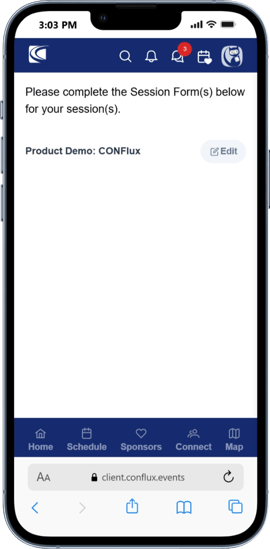
- Edit means the session form has already been submitted, but it can still be updated.
Complete the Session Reporting Form
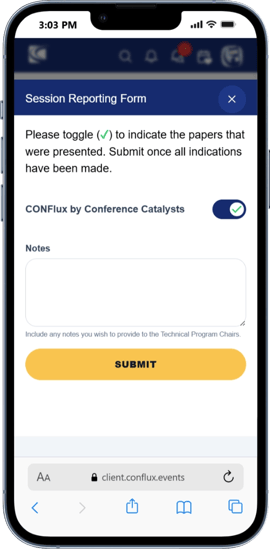
In the Session Reporting Form, review each paper or presentation listed for the session.
- For each paper or presentation, toggle the status to indicate whether it was presented:
- ✅ Presented
- ❌ Not Presented
- Add any applicable notes for the Technical Program Chairs.
- When all presentation statuses have been updated, select Submit.
Viewing Your Assigned Chaired Sessions
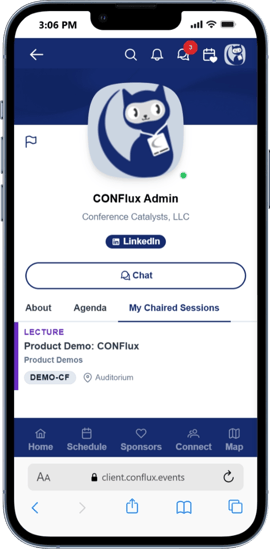
Session chairs can also view their assigned sessions from their profile. This area is view only — session reporting forms cannot be completed from this page.
View Your Assigned Sessions
- Log in to CONFlux.
- Open the menu.
- Click your user avatar in the menu to expand the profile options.
- Select My Profile.
- Go to the My Chaired Sessions tab.
- Review the sessions assigned to you.
Troubleshooting
If you cannot find My Chaired Sessions in the user menu or on the My Chaired Sessions tab under Contact, your session chair assignment may need to be confirmed.
Please contact the conference support team so they can verify that you have been assigned to the correct session.
Once your assignment has been confirmed or updated, complete a log cycle:
- Fully log out of CONFlux.
- Close your browser or app.
- Reopen CONFlux.
- Log back in.
- Check My Chaired Sessions again.
Ready to Get Started?
Download the CONFlux app now and enhance your conference experience.
Download the App